
A professional logo acts as the silent ambassador of your ecommerce business, instantly communicating trust and quality to visitors before they even browse your products. If you are a Shopify merchant looking to elevate your store’s visual appeal without spending a fortune on agencies, this guide is your blueprint. I have analyzed the mechanics behind successful brand identity, from mastering the Shopify logo size to utilizing tools like Hatchful and Canva, ensuring you avoid the common pitfall of blurry, amateurish headers.
- Optimal Sizing: Why 200×100 pixels is the standard, but not always the best choice for retina displays.
- Transparency Matters: How a transparent background separates professional stores from beginners.
- Tool Selection: Comparing native options like Hatchful against flexible design platforms.
- Implementation: Step-by-step logic for integrating your brand assets into Shopify themes.
The Technical Reality of Shopify Logo Dimensions
In my years of auditing ecommerce stores, the most frequent mistake I see is not poor design, but poor implementation of resolution and aspect ratio. You might have a beautiful vector file, but if you upload it with the wrong dimensions, Shopify’s compression can turn it into a pixelated mess.
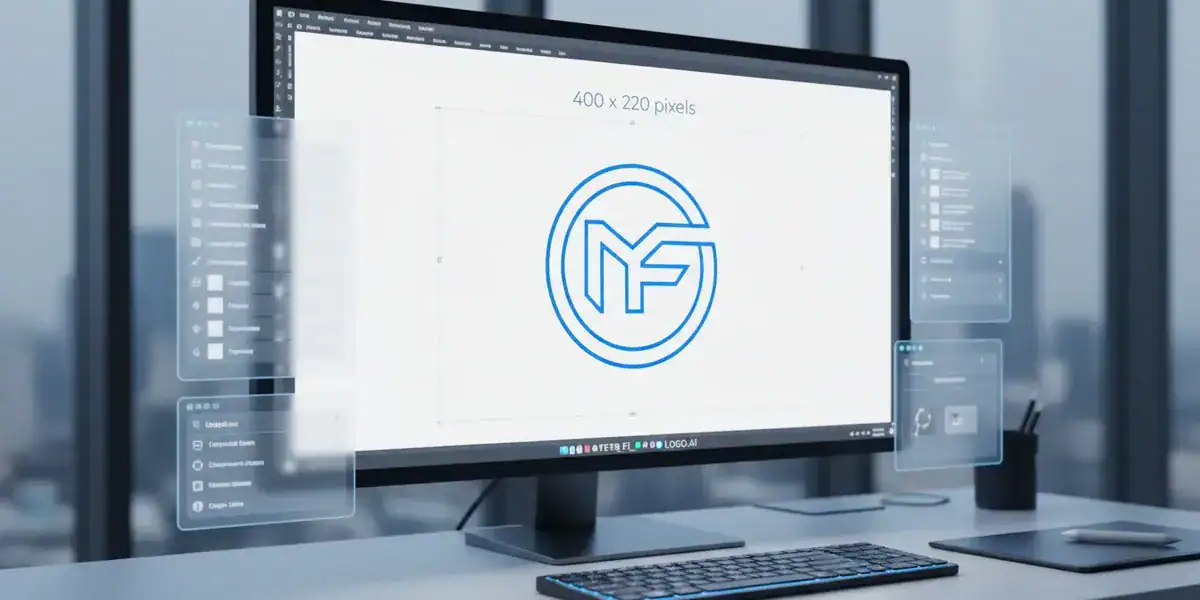
Industry data indicates that the “sweet spot” for a standard Shopify logo is 200 x 100 pixels. This maintains a 2:1 aspect ratio that fits neatly into most theme headers without pushing the navigation menu off-screen. However, I often advise clients to think beyond these base numbers. With high-resolution mobile screens being the norm, uploading a file that is exactly 200 pixels wide often results in fuzziness.
A better approach is to create your master file at double the intended display size—around 400 x 200 pixels or even up to 450 x 250 pixels—and let the theme scale it down. This ensures crisp edges on retina displays. Just be careful not to exceed the maximum limits set by your specific theme, as this can negatively impact page load speeds. Speed is currency in ecommerce; do not trade it for an unnecessarily massive image file.
Navigating the Hatchful Ecosystem
Shopify recognized early on that branding was a barrier for many entrepreneurs, leading to the creation of Hatchful, their native Shopify logo maker. If you are launching a dropshipping store or a quick MVP (Minimum Viable Product), Hatchful is a functional starting point.
The process is straightforward: you select your business space (fashion, tech, beauty), choose a visual style, and the tool generates hundreds of variations. The real value here isn’t just the logo; it’s the asset package. Hatchful automatically generates favicons and social media banners formatted for platforms like Facebook and Instagram. This saves hours of manual resizing.
However, I have found that Hatchful’s strength is also its weakness. Because it relies on a finite library of icons and templates, your store might end up looking eerily similar to a competitor’s. It lacks the deep customization required for a truly unique brand identity. It serves the purpose of getting you live quickly, but as you scale, you will likely outgrow these pre-set templates.
The Efficiency of AI in Modern Branding
While manual tools like Canva give you control, they also demand a design eye that many merchants lack. This is where the industry is shifting. We are seeing a surge in advanced AI tools that bridge the gap between Hatchful’s speed and a professional designer’s quality.
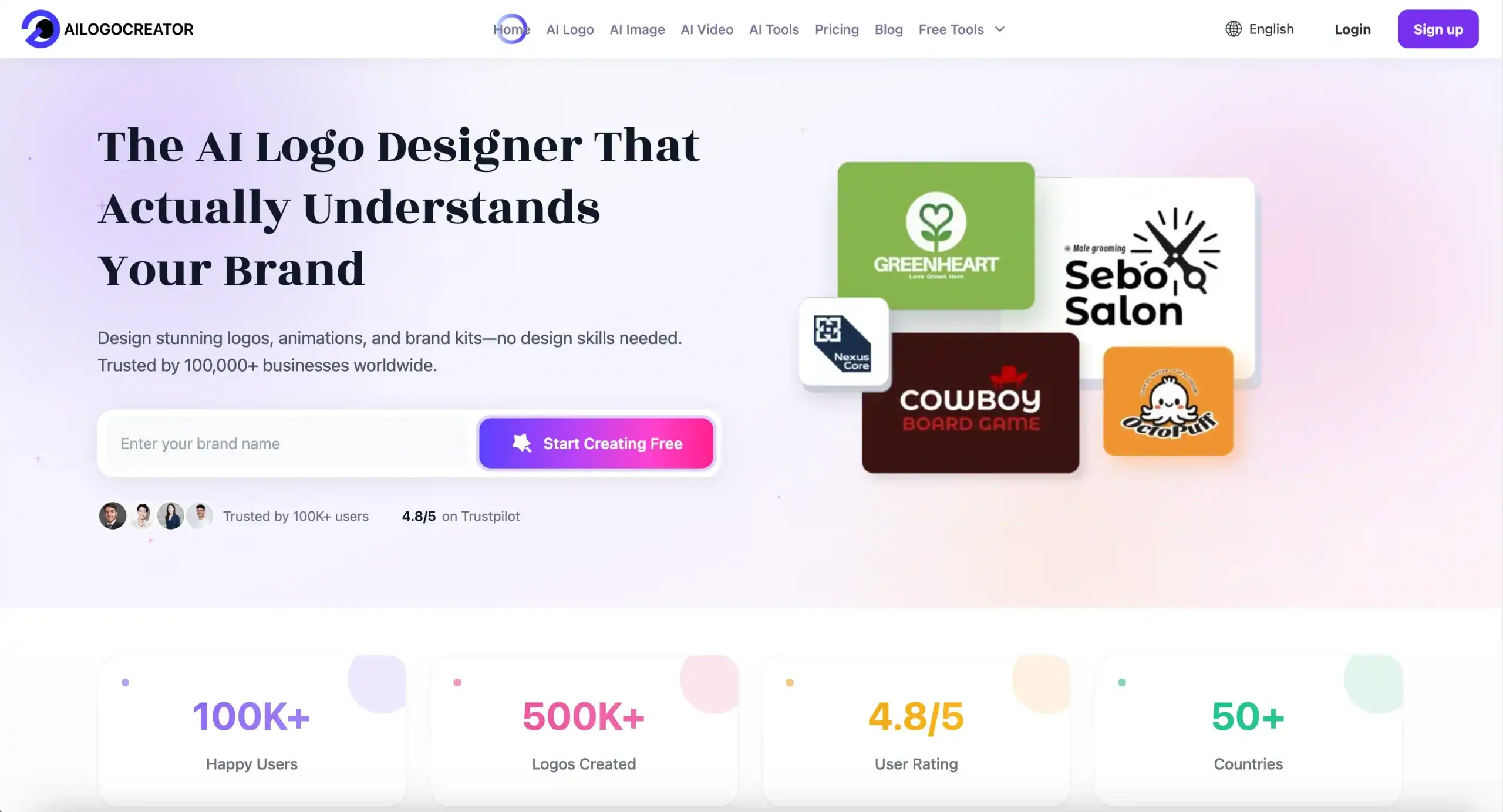
The advantage of modern AI generators is their ability to understand semantic context—knowing that a “coffee shop” logo needs warmth and steam, not just a generic cup icon. For merchants who want a high-end look without the learning curve of design software, solutions like Ailogocreator are setting a positive industry benchmark. These platforms focus on generating logos that are not just visually pleasing but “website-ready,” often handling the transparency and sizing logic automatically. This allows you to focus on selling products rather than tweaking pixels.
Integrating Your Brand Assets into the Theme
Once you have your file, the integration process in Shopify is deceptive in its simplicity. You navigate to the “Header” section in your theme editor and upload the image. But this is where alignment issues often arise.
I recommend testing your logo alignment on mobile immediately. A logo that looks centered and balanced on a desktop monitor can easily look gigantic or misaligned on a smartphone screen. Most premium Shopify themes allow you to set a specific “Mobile Logo Width.” Do not ignore this setting.
If your logo has text (a wordmark), ensure it is legible when shrunk down to 60 pixels high, which is a common mobile header height. If the text becomes unreadable, consider using a “favicon” or a simplified symbol version of your logo for mobile devices. This responsive approach to brand identity ensures a seamless user experience across all devices.
FAQ
What is the best file format for a Shopify logo?
SVG is the superior choice for sharpness and scalability. However, PNG is the most common and practical format, especially if you need a transparent background. Avoid JPG as it does not support transparency.
Why does my logo look blurry on my Shopify store?
This usually happens if the uploaded image is too small or if the compression is too aggressive. Try uploading a file that is twice the dimensions of the display size (e.g., upload 400px wide for a 200px display width) to support high-density screens.
Can I change my logo size in the Shopify theme editor?
Yes, most themes have a slider in the Header section that allows you to adjust the display width. However, this only scales the image visually; it does not change the actual file resolution.
Do I really need a transparent background?
Yes. Unless your website header is permanently white, a logo with a colored background looks like a sticker and disrupts the visual flow of your site.
Conclusion and Actionable Suggestions
Your logo is the anchor of your store’s visual credibility. It does not need to be complex, but it must be executed with technical precision. A blurry or poorly cropped logo suggests a lack of attention to detail that customers subconsciously project onto your product quality.
Here is my advice for finalizing your store’s branding:
- Audit Your Assets: Check your current logo on a mobile device. If the text is illegible, create a simplified “symbol-only” version for mobile views.
- Go Vector if Possible: If your design tool allows it, export as SVG. It provides the smallest file size with the highest possible quality.
- Use Specialized Tools: Don’t rely on Paint or basic editors. Use purpose-built platforms like Ailogocreator or expert design software to ensure you get the correct aspect ratios and background transparency automatically.
- Double the Density: Always upload a version slightly larger than the display area to ensure crispness on Apple Retina and high-DPI Android screens.
- Consistency Check: Ensure the colors in your logo match the hex codes used in your buttons and links for a cohesive brand identity.
CommentsTake the first comment